
QA Checks
Catch broken placeholders, tags, and plurals before they ship.
Documentation
- What is Localizely?
- Getting started
- Localization workflow
- Translation editor
- Organizations
- Flutter Over-the-Air updates
- Flutter In-Context Editing
- Project branching
- Public projects
- Professional translation services
- Machine Translation
- AI Translation
- Translation Memory
- Glossary
- Tasks
- QA checks
- Reports and Statistics
- Figma integration
- AWS S3 integration
- GitHub integration
- GitLab integration
- Bitbucket integration
- CLI
- Configuration file
- Supported file formats
- Universal placeholders
- Language & Country Codes
- Referral Program
- Affiliate Program
- FAQ
QA checks automatically scan your translations for common issues, such as placeholder mismatches, invalid ICU syntax, or exceeded length limits. These are the kinds of mistakes that are easy to overlook while translating but can crash a screen or break the layout once the app is released. Each check is configured per project, so you decide which issues are reported as warnings, which are treated as errors that block saving, and which are not checked at all.
Available QA checks
Localizely currently runs the following QA checks:
- Placeholder consistency catches placeholders that are missing or differ from those in the main translation. In projects with universal placeholders, the check compares the stored form, so it works the same for every platform.
- ICU syntax validity catches invalid ICU MessageFormat syntax, such as malformed plurals, selects, or arguments.
- Tag consistency catches HTML or XML tags that are missing or differ from those in the main translation.
- Length limit exceeded catches translations longer than the character limit set for the key.
- Plural form completeness catches plural translations that are missing one of the plural forms the language requires.
- Trailing/leading whitespaces catches unexpected spaces at the start or end of a translation.
- Trailing/leading newlines catches unexpected line breaks at the start or end of a translation.
- Double/consecutive spaces catches two or more spaces in a row within a translation.
- Word repetitions catches the same word repeated twice in a row within a translation.
Severity levels
Each QA check runs at one of three severity levels, so you control how strictly it is enforced:
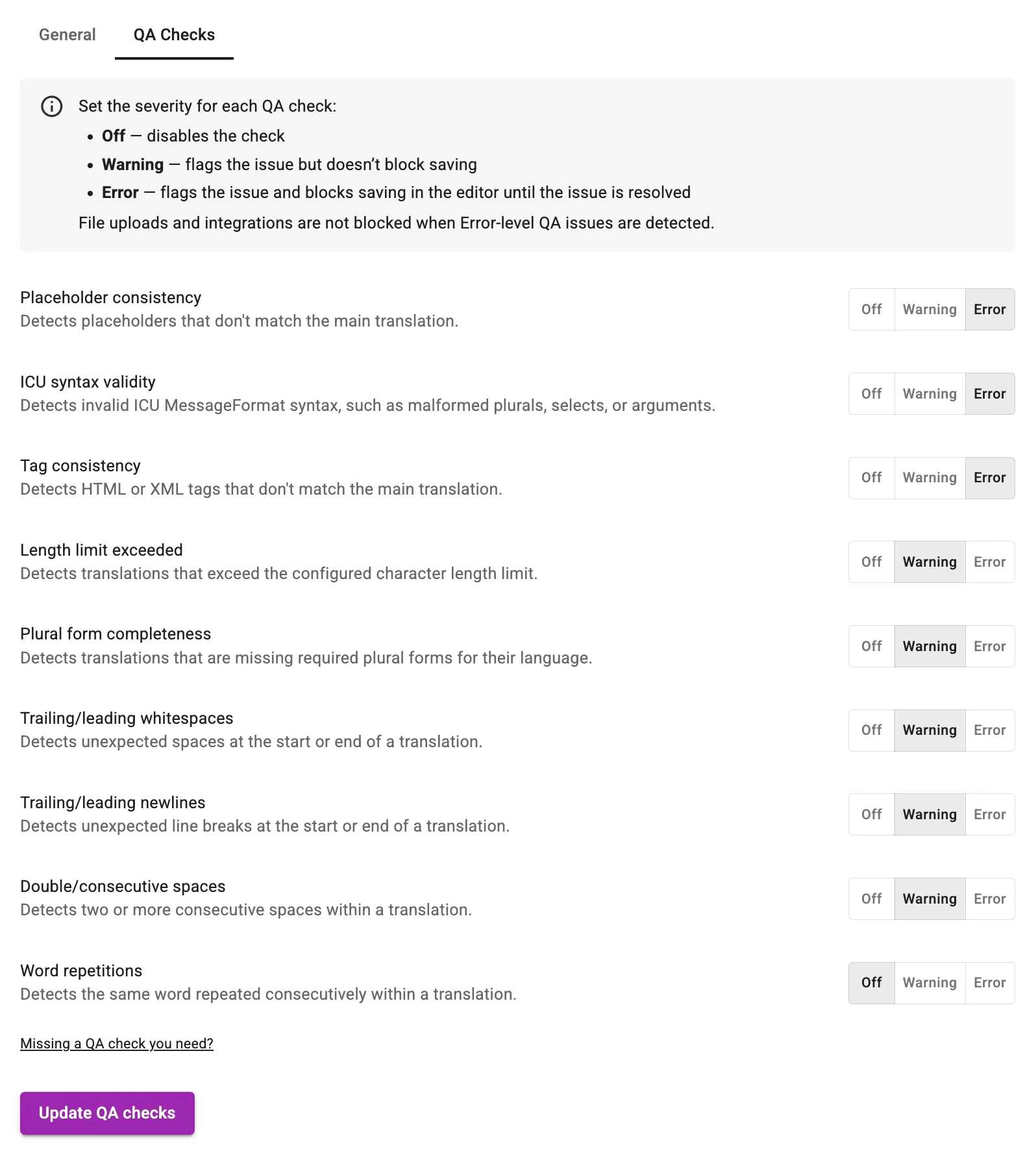
- Off disables the check. Issues of this type are neither detected nor reported.
- Warning flags the issue but still lets the translation be saved.
- Error flags the issue and blocks saving in the editor until it is resolved.
Note: Error-level issues found during file uploads or integration syncs never block the import. The translations come in, the issues are reported, and you can fix or ignore them afterwards.
Configuring QA checks
The project owner and project admins configure QA checks on the project's Settings page. Each check has its own severity level, so you can tune the set to fit your project. All checks start at Warning by default.
Placeholder consistency, ICU syntax validity, and Tag consistency catch problems that can cause errors at runtime, so setting them to Error is usually a good idea.
Tracking QA issues
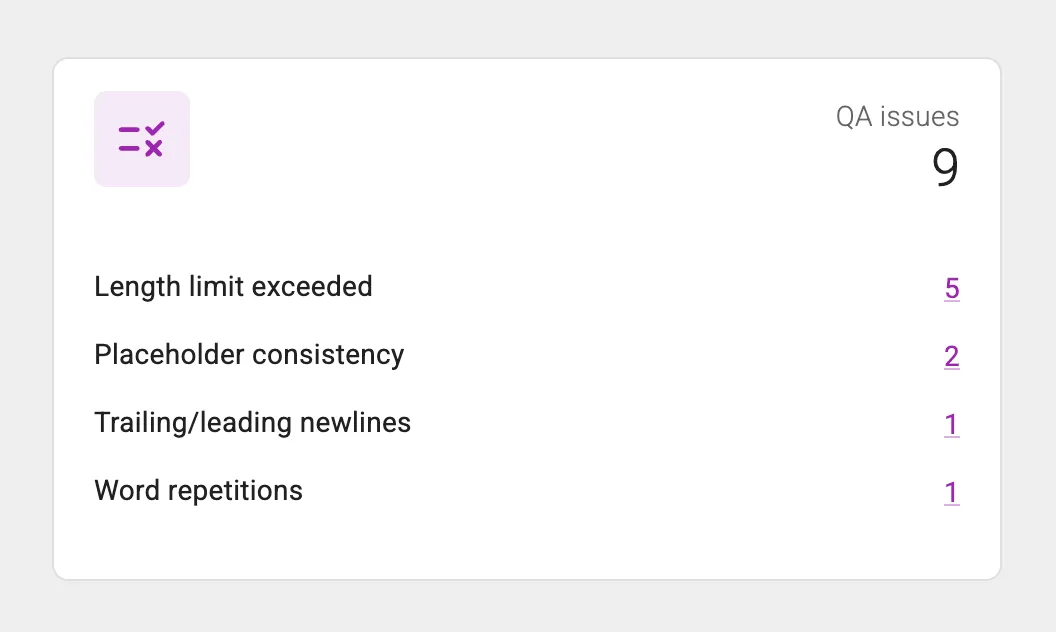
The project Dashboard includes a QA issues card that lists every type of issue currently detected in the project and how many times it occurs. It gives you a quick read on translation quality and shows what still needs attention.
Reviewing QA issues
On the Translations page, every translation with a QA issue is clearly marked. Click the marker to see exactly what triggered the warning or error, then fix it in place. You can also filter translations by QA issue and work through them one by one.
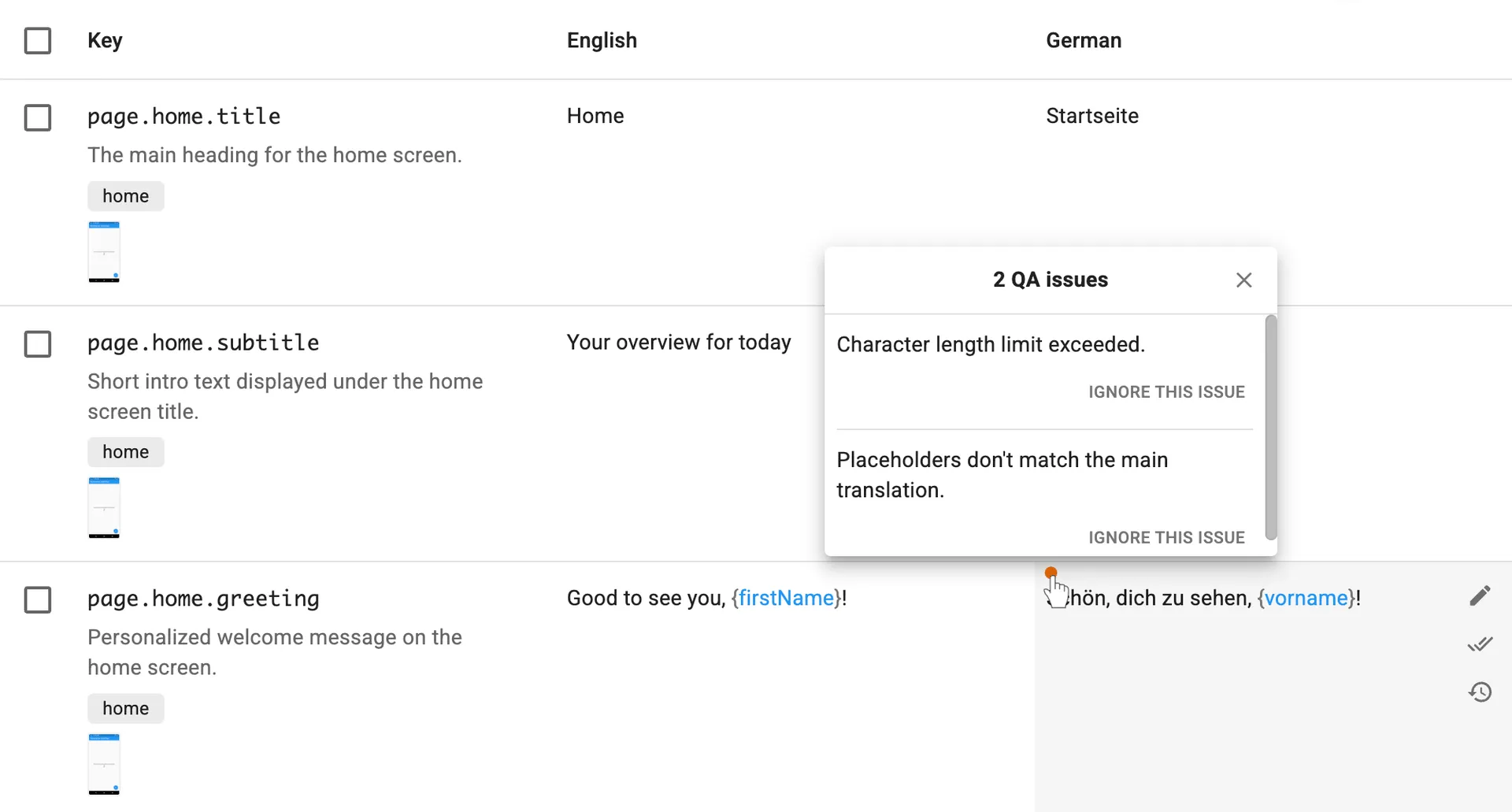
Now and then a flagged translation is actually correct. In German, for example, repeated words like die die are perfectly grammatical, and some translations keep a leading or trailing newline on purpose to preserve the page layout.
For cases like these, click Ignore this issue below the reported issue. Known exceptions then stop showing up in your issue counts, so what remains is a clean list of things that really need fixing.
Previous: Tasks
Read next: Reports and Statistics
Tired of manually editing translation files?
Our platform streamlines software localization for you.
Documentation
- What is Localizely?
- Getting started
- Localization workflow
- Translation editor
- Organizations
- Flutter Over-the-Air updates
- Flutter In-Context Editing
- Project branching
- Public projects
- Professional translation services
- Machine Translation
- AI Translation
- Translation Memory
- Glossary
- Tasks
- QA checks
- Reports and Statistics
- Figma integration
- AWS S3 integration
- GitHub integration
- GitLab integration
- Bitbucket integration
- CLI
- Configuration file
- Supported file formats
- Universal placeholders
- Language & Country Codes
- Referral Program
- Affiliate Program
- FAQ

Resources
- What is Localizely?
- Getting started
- Localization workflow
- Translation editor
- Organizations
- Flutter Over-the-Air updates
- Flutter In-Context Editing
- Project branching
- Public projects
- Professional translation services
- Machine Translation
- AI Translation
- AI Assistant
- Translation Memory
- Glossary
- Tasks
- QA checks
- Reports and statistics
- Figma integration
- AWS S3 integration
- GitHub integration
- GitLab integration
- Bitbucket integration
- CLI
- Configuration file
- Supported file formats
- Universal placeholders
- Language & Country Codes
- Referral Program
- Affiliate Program
- I18N Questions
- FAQ
Free tools
- ICU message for translators
- ICU message editor
- Hreflang generator
- Hreflang checker
- JSON Flattener
- JSON Validator
- YAML Validator
- XML Validator
- CSV Validator
- TMX Viewer
- Text Compare
- Text Encoding Converter
- Localization File Converter
- JSON Word Counter
- ARB Word Counter
- Translation Cost Calculator