
Tasks
Decide what needs translating, by whom, and by when.
Documentation
- What is Localizely?
- Getting started
- Localization workflow
- Translation editor
- Organizations
- Flutter Over-the-Air updates
- Flutter In-Context Editing
- Project branching
- Public projects
- Professional translation services
- Machine Translation
- AI Translation
- Translation Memory
- Glossary
- Tasks
- QA checks
- Reports and Statistics
- Figma integration
- AWS S3 integration
- GitHub integration
- GitLab integration
- Bitbucket integration
- CLI
- Configuration file
- Supported file formats
- Universal placeholders
- Language & Country Codes
- Referral Program
- Affiliate Program
- FAQ
A task is a bundle of string keys and languages assigned to specific project contributors, with an optional description and due date. Instead of pointing contributors at the whole project and hoping the right strings get done, you hand each of them a clear piece of work and follow its progress from one place.
Tasks live inside a project. The project owner and project admins create them and can assign them to anyone on the project, including other admins and translators. Each assignee is notified by email and finds the work waiting in their My active tasks tab.
Creating a task
There are two ways to create a task, depending on where you start. Pick the string keys first on the Translations page, or start from the Tasks page and choose the keys as part of the task.
From the Translations page
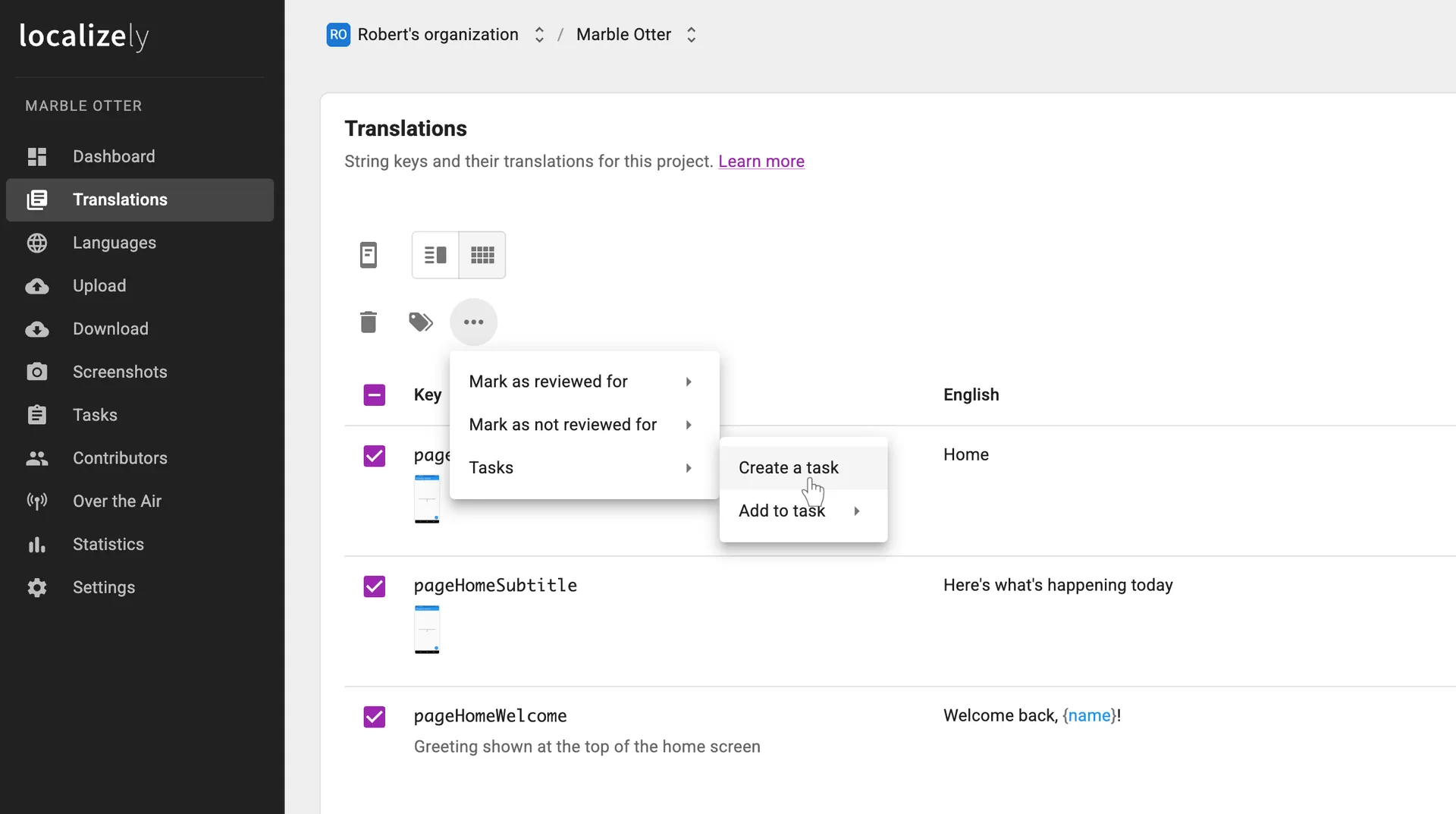
On the Translations page, tick the checkboxes next to the string keys you want to include. Then open the More menu and choose Create a task.
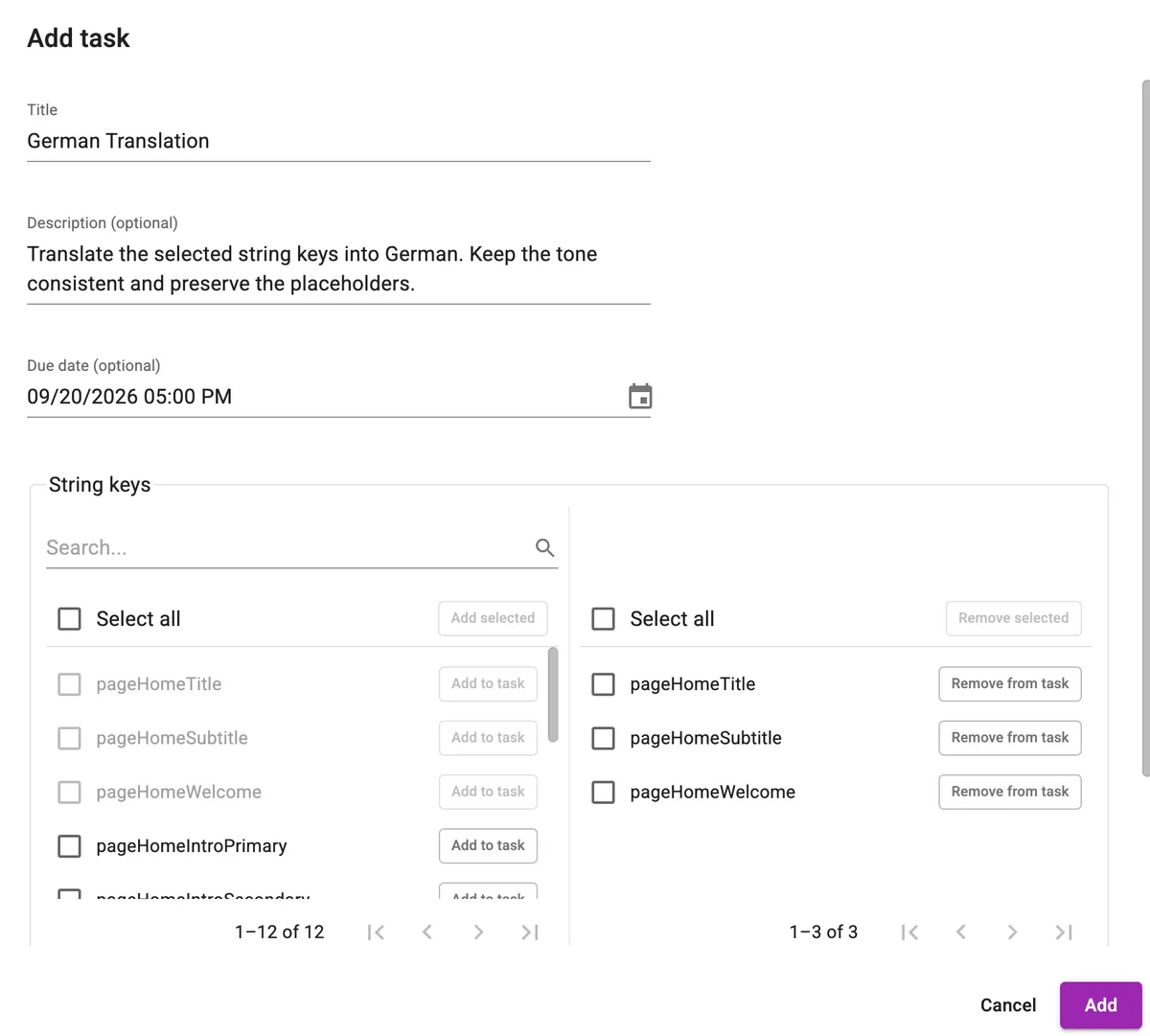
The Task dialog opens with the selected keys already in place. Give the task a title, and optionally add a description and a due date. At the bottom of the dialog, choose the languages the task covers and assign contributors to each one, so a single task can send German to one translator and French to another.
From the Tasks page
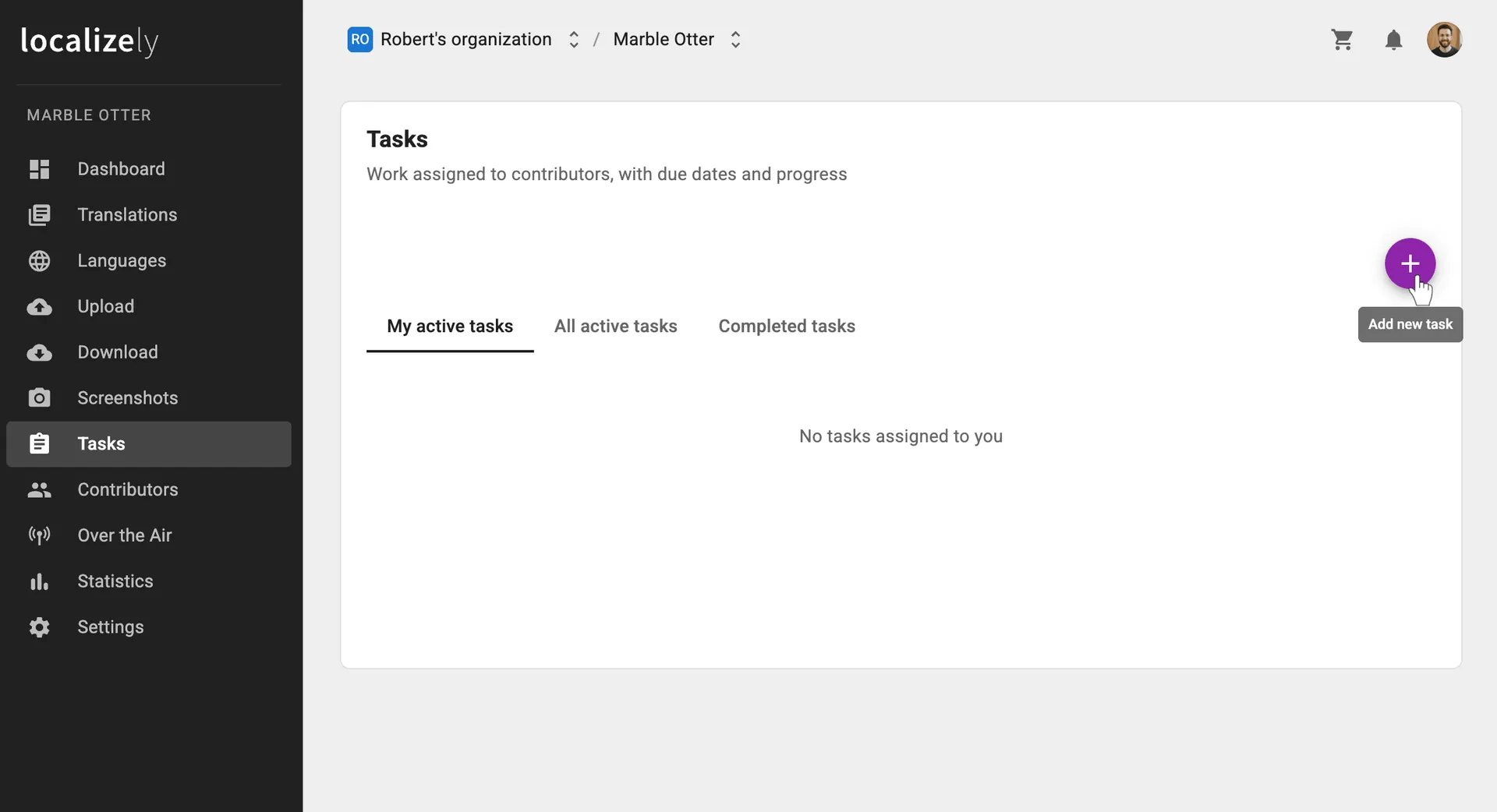
On the Tasks page, click Add new task in the top-right corner. The same Task dialog opens, this time with an empty key list. Fill in the task details, pick the string keys and languages, and assign contributors.
Editing and completing a task
Tasks are easy to adjust as work evolves. To add more string keys to an existing task, select them on the Translations page and choose Add to task. To change the title, description, due date, or assignments, open the task on the Tasks page.
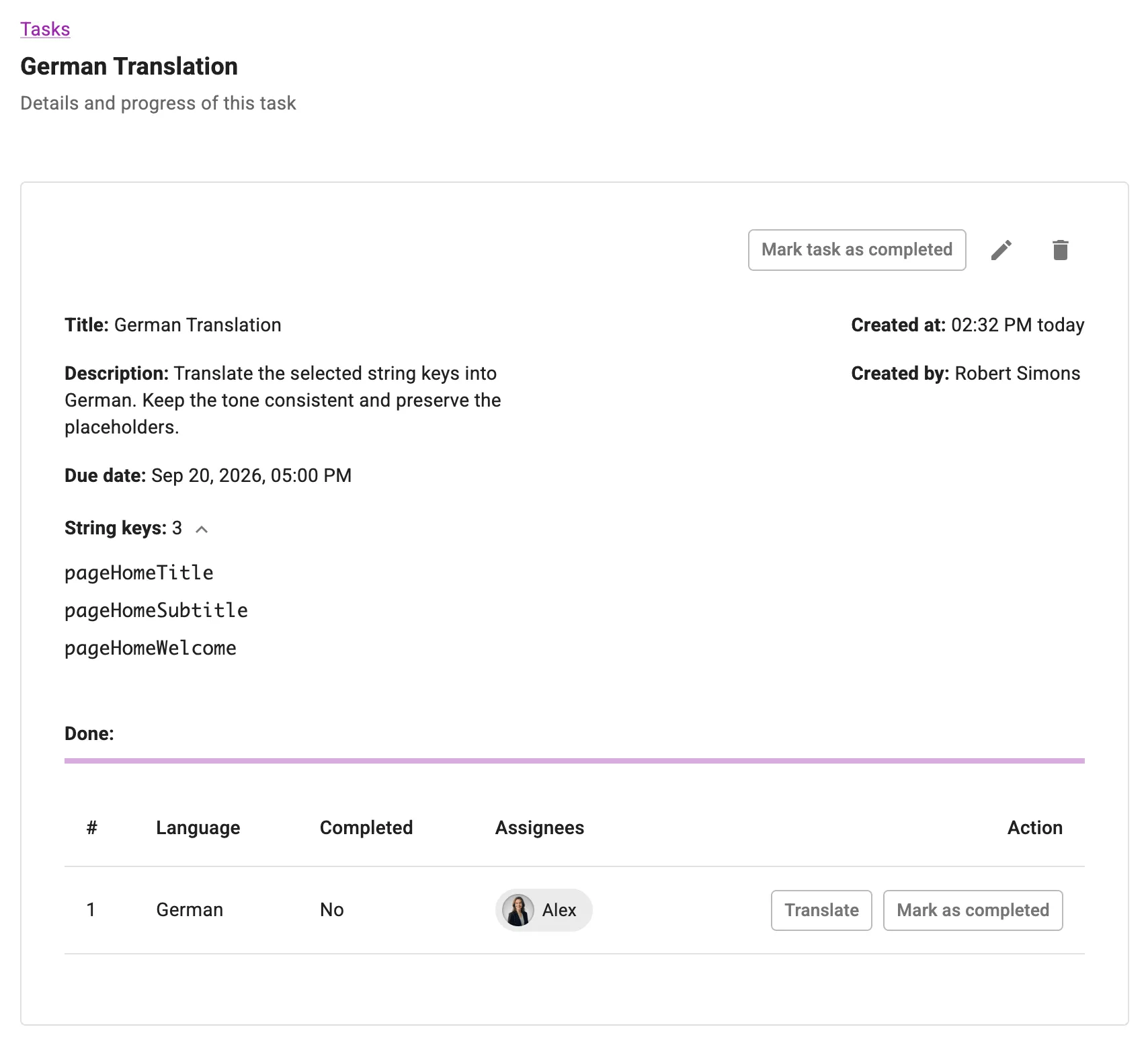
The task page also shows how far along each language is. When an assignee finishes their language, they mark it as completed. Once every language is done, the task itself can be marked as completed.
Finding task work in the editor
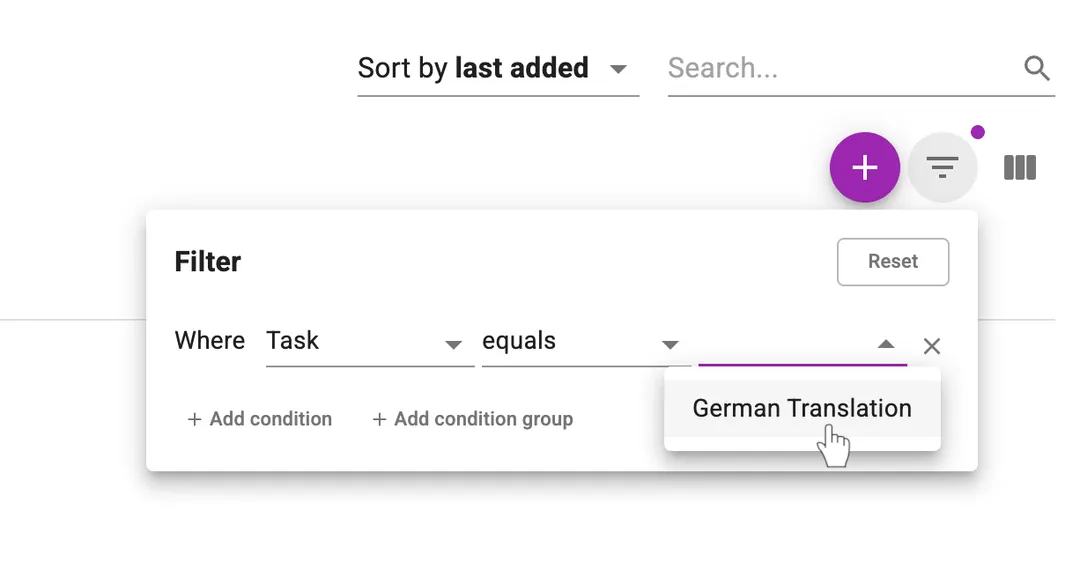
To see only the string keys that belong to a task, open the Filters menu in the top-right corner of the Translations page and select the task.
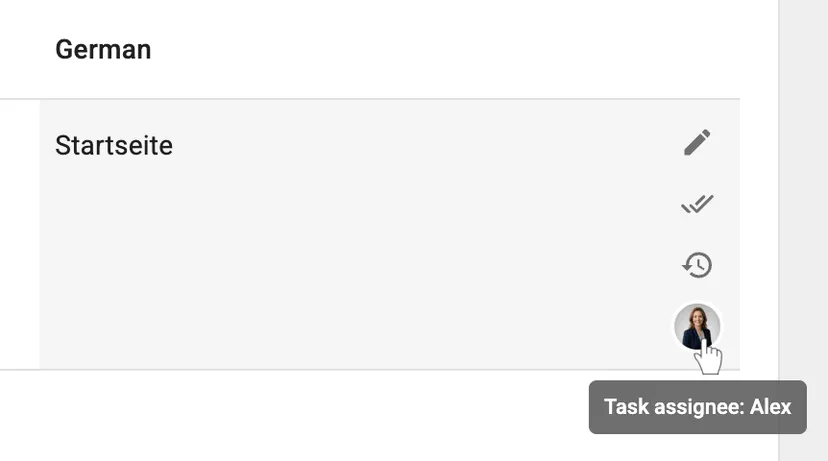
Assignments are also visible directly in the Translations table. Whenever a key and language are part of a task, the assignee's avatar appears at the bottom of that cell, so you can tell at a glance who is responsible for which translation.
Restricting contributions to tasks
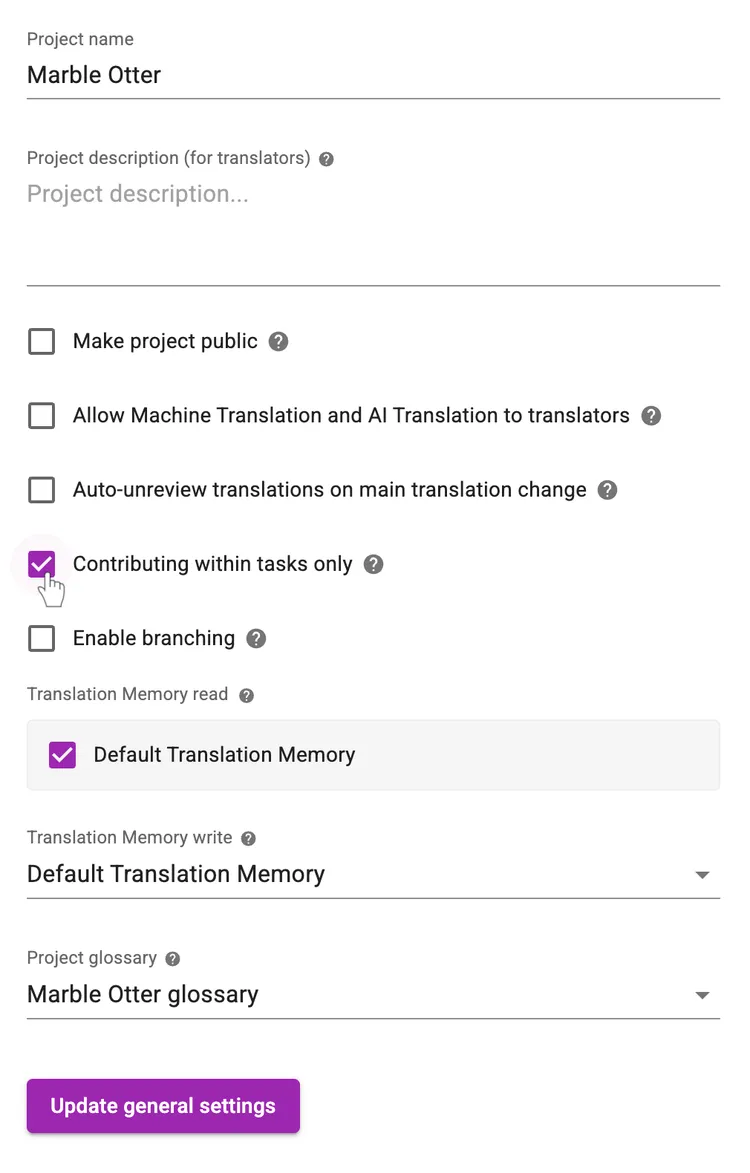
If you want all translation work in a project to go through tasks, enable Contributing within tasks only on the project's Settings page. The project owner and project admins can turn this on. Translators can then work only on the translations assigned to them in a task, and every other translation is locked for them.
Tired of manually editing translation files?
Our platform streamlines software localization for you.
Documentation
- What is Localizely?
- Getting started
- Localization workflow
- Translation editor
- Organizations
- Flutter Over-the-Air updates
- Flutter In-Context Editing
- Project branching
- Public projects
- Professional translation services
- Machine Translation
- AI Translation
- Translation Memory
- Glossary
- Tasks
- QA checks
- Reports and Statistics
- Figma integration
- AWS S3 integration
- GitHub integration
- GitLab integration
- Bitbucket integration
- CLI
- Configuration file
- Supported file formats
- Universal placeholders
- Language & Country Codes
- Referral Program
- Affiliate Program
- FAQ

Resources
- What is Localizely?
- Getting started
- Localization workflow
- Translation editor
- Organizations
- Flutter Over-the-Air updates
- Flutter In-Context Editing
- Project branching
- Public projects
- Professional translation services
- Machine Translation
- AI Translation
- Translation Memory
- Glossary
- Tasks
- QA checks
- Reports and statistics
- Figma integration
- AWS S3 integration
- GitHub integration
- GitLab integration
- Bitbucket integration
- CLI
- Configuration file
- Supported file formats
- Universal placeholders
- Language & Country Codes
- Referral Program
- Affiliate Program
- I18N Questions
- FAQ
Free tools
- ICU message for translators
- ICU message editor
- Hreflang generator
- Hreflang checker
- JSON Flattener
- JSON Validator
- YAML Validator
- XML Validator
- CSV Validator
- Text Compare
- Text Encoding Converter
- Localization File Converter
- JSON Word Counter
- ARB Word Counter
- Translation Cost Calculator